You will learn
- What is available from the Workshop communications calendar
- How to create & manage planned content plus, quickly turn it into a message
- How to create & manage notes
What to leverage when planning your comms calendar
Your communications calendar gives you a few ways to plan ahead, depending on what you're planning:
-
Planned content: Our recommendation any time you want to put a placeholder on the calendar for a specific message or piece of content that will go out.
If you're ready to build the message, you can also create your draft email and schedule it for a future date.
- Notes: Best for activities, events, and other things your team should be aware of.
Planned content
Use planned content when you know a specific message or piece of content needs to go out on a certain date, but you aren't ready to write it or schedule it yet. A placeholder on the calendar helps your team see what's coming and prepare for it.
Planned content is a good fit for:
- A newsletter that goes out on a regular schedule
- An announcement that's tied to an upcoming launch or deadline
- A reminder message ahead of an event or deadline
To create planned content:
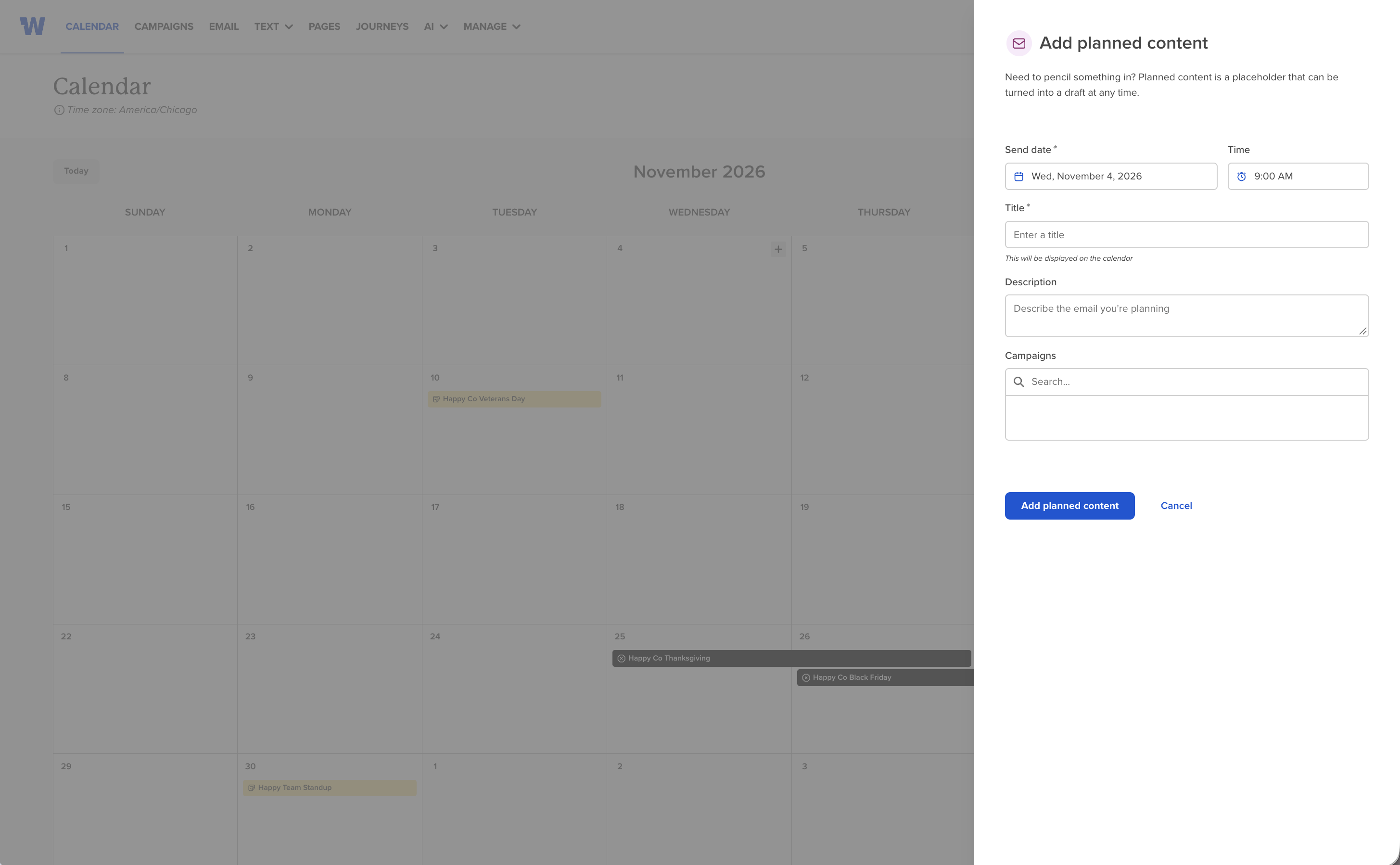
From your Workshop communications calendar, click the + icon for the day you want the content planned for.
Select Add planned content
- Add the details for your planned content, such as:
Send time: When you expect the content to go out.
Title: What displays on the calendar so others can quickly understand what's planned.
Description: Additional context for your team about the content.
Campaign: The campaign this content belongs to.
Just click into your planned content to edit these details at any time, or to delete the planned content.
Tip: Use the campaign field to keep related content together. For example, add every planned and created piece of your all-employee newsletter to the same campaign, so it all lives in one place. Or, when planning a sequence like open enrollment, bring every message into the same campaign on day one.
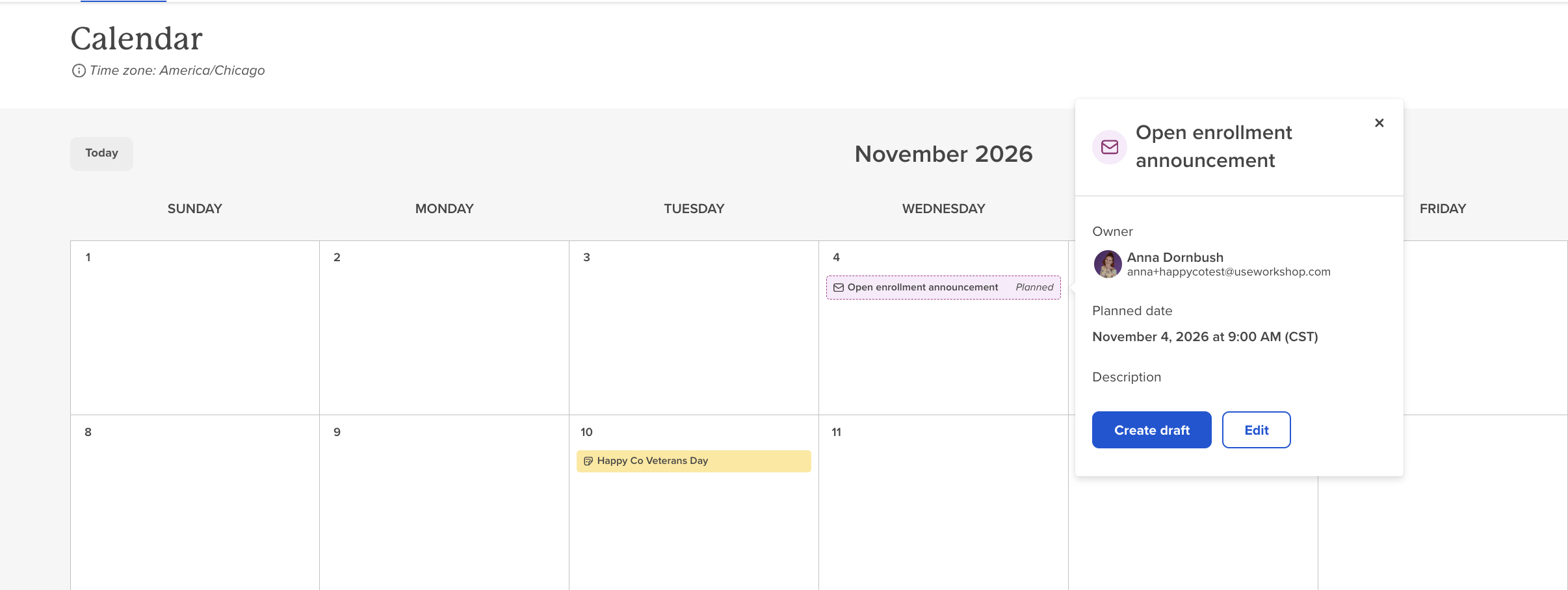
To turn planned content into an email draft:
When you're ready to build your content, you can create a draft email directly from your planned content.
Open your planned content on the calendar.
Select Create draft.
Workshop takes you to the email editor, where your draft has been created. You'll see a suggested prompt to help you build out the initial design for your content.
Your planned content now displays on the calendar as a draft email, and the draft lives in your email index.
Who can view & manage planned content:
Planned content, and its details, is visible to all Workshop users.
- From the initial calendar view, a user can only see the title of a note. To see more details, a user must click into the note.
Planned content can only be managed by the owner of the planned content, this includes deletion.
Once planned content is turned into an email draft, sharing & privacy will apply. If a campaign was associated with the draft, any user within the campaign will have access to view the draft email. If not, the draft email is only accessible by the owner to start.
Notes
Notes, on your communication calendar, help communicate important dates or events to everyone, ensuring no one misses out. A note can be used for various reasons:
- Events and activities within the organization
- Holidays
- Topic reminders
To create a note:
From your Workshop communications calendar, click the + icon for the day you want the content planned for.
Select Add note
- Add the details for your note, such as:
Color: This will color code your notes on the calendar. We recommend using a certain color for the 'type' of note you are communicating to allow others on your team to quickly understand the planned activities on the upcoming calendar without having to dive into the details.
- Title: This is what will display on the calendar for others to quickly understand what the note is in reference to
- Description: A user can view the description once they click into a note. This is a great way to provide additional notes / context to help others understand the context of the note. You have the ability to simply add text in this description but you also can add links! We also recommend linking out to other resources where there may be additional context or if you have already started a Workshop email for the planned communication, you can link to that draft email.
Who can view & manage notes:
A note, and its details, is visible to all Workshop users.
- From the initial calendar view, a user can only see the title of a note. To see more details, a user must click into a note.
A note can only be managed by the owner of the planned content, this includes deletion.